
Know what your bank account looks like in 60 days
NXT60 projects your daily balance based on your real income, bills, and debt. No bank login. No guesswork. Setup takes just 4 minutes. Try all features completely free for 7 days.
Available Now! Start your 7-day free trial.
See your cash flow 60 days into the future. Tap below to download.


Features
See every day
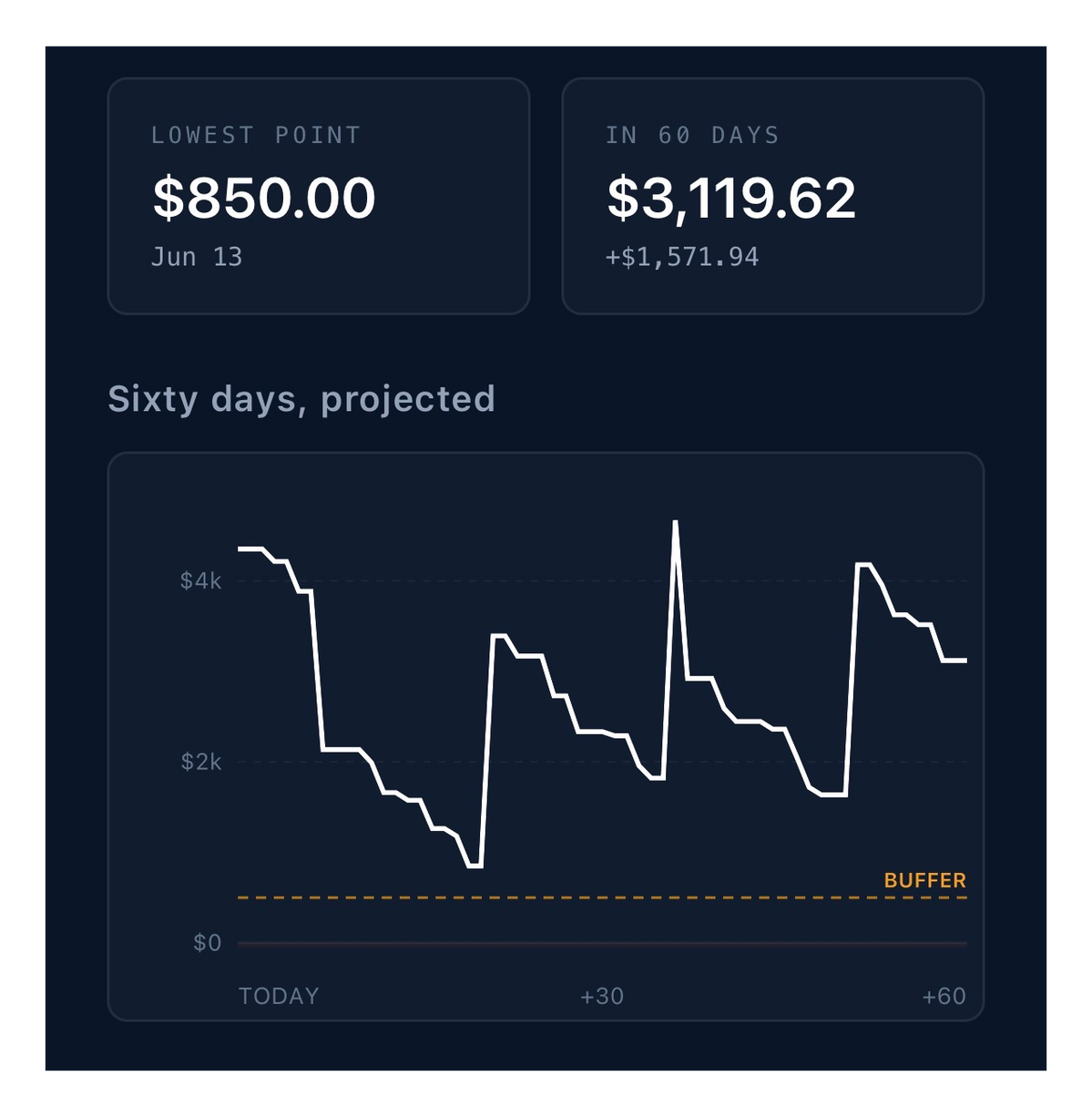
Your projected balance for every single day. Touch the chart to see exact amounts. Visual warnings when you're approaching your buffer or going negative.
Real debt math
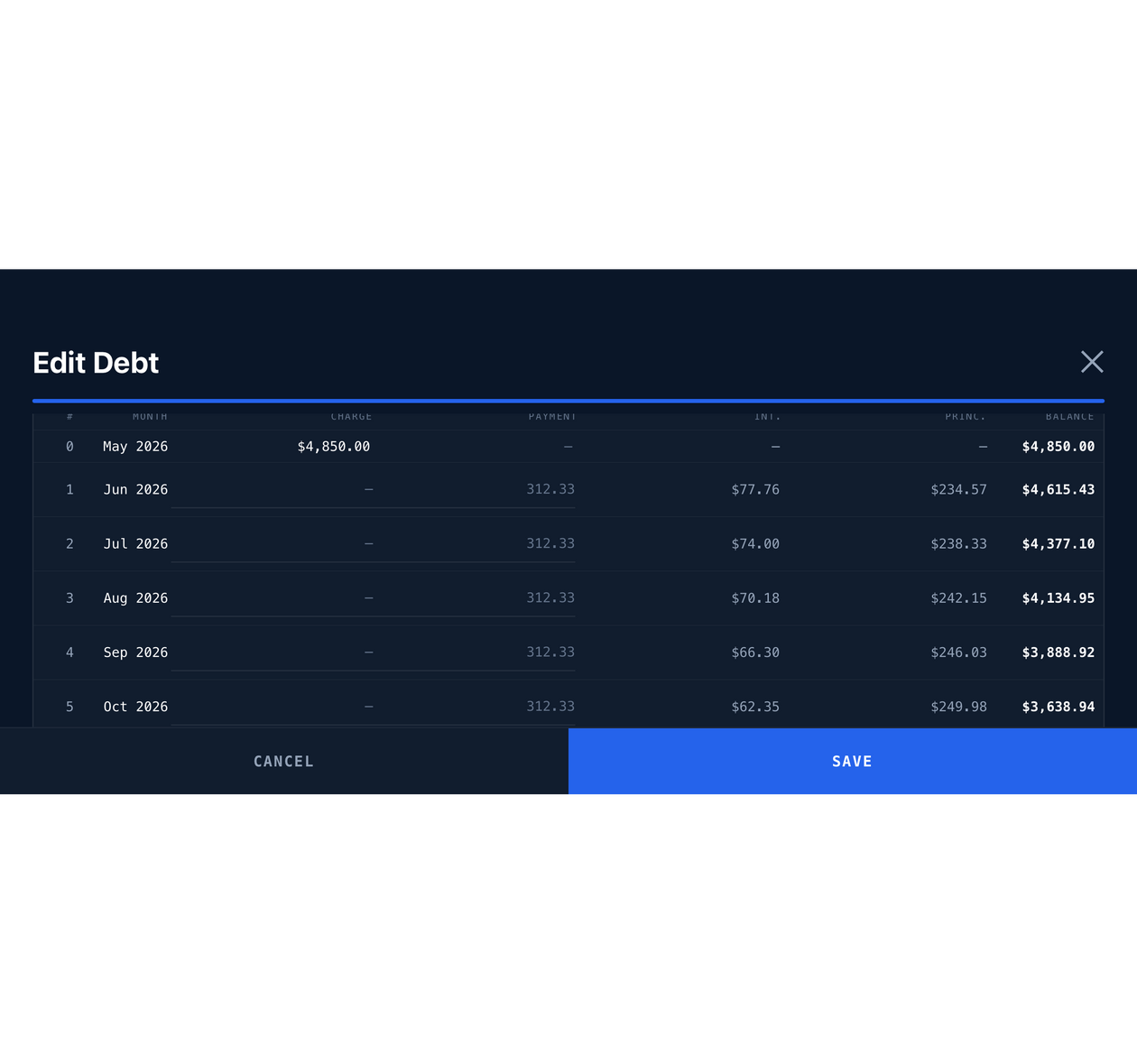
Actual amortization calculations matching your lender's numbers. See interest vs. principal for every payment. Add extra payments and watch your payoff date move closer.
Total Manual Control
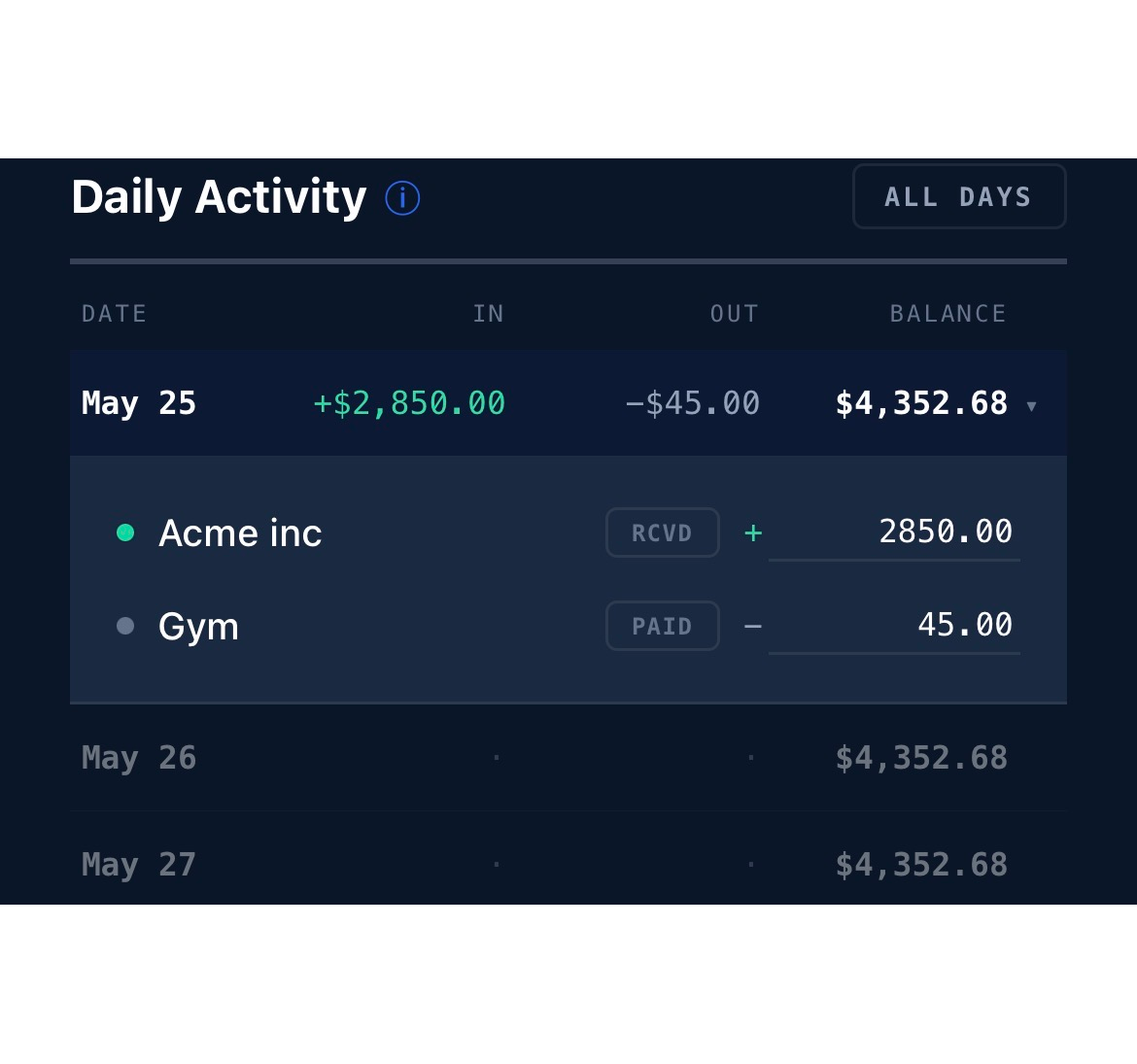
Easily tweak upcoming amounts, add sudden one-time expenses, or mark items as paid or received. NXT60 instantly recalibrates your entire 60-day forecast.
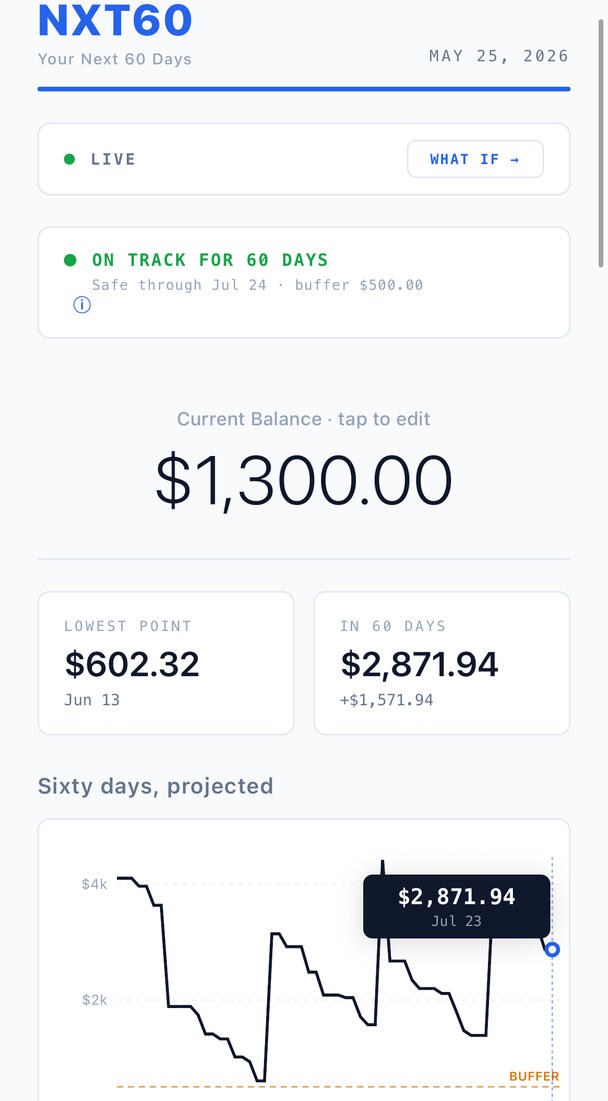
Dark mode
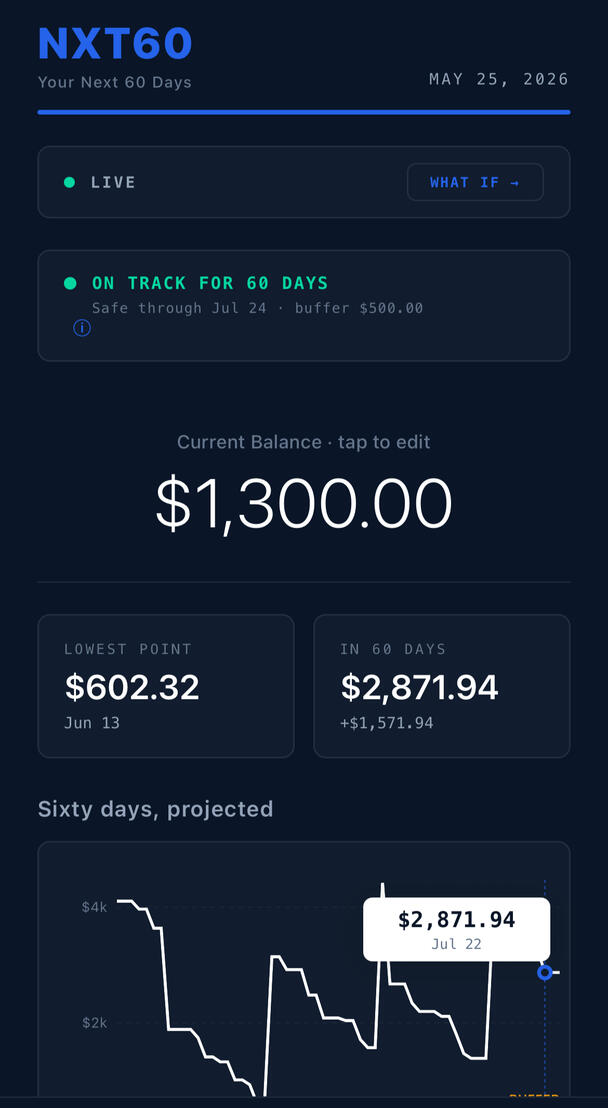
Light mode
The 4-Minute Baseline Setup
Plug in your standard income frequency and fixed monthly bills. Do it once, from scratch, to instantly unlock your 60-day visual forecast - no bank logins or privacy risks required.

Level Up with Real Debt Math
Got credit cards or loans? Take an extra minute to drop in your balances. NXT60 runs accurate amortization calculations so you can simulate extra payments and watch your payoff dates shift.

5 SECOND UPDATES
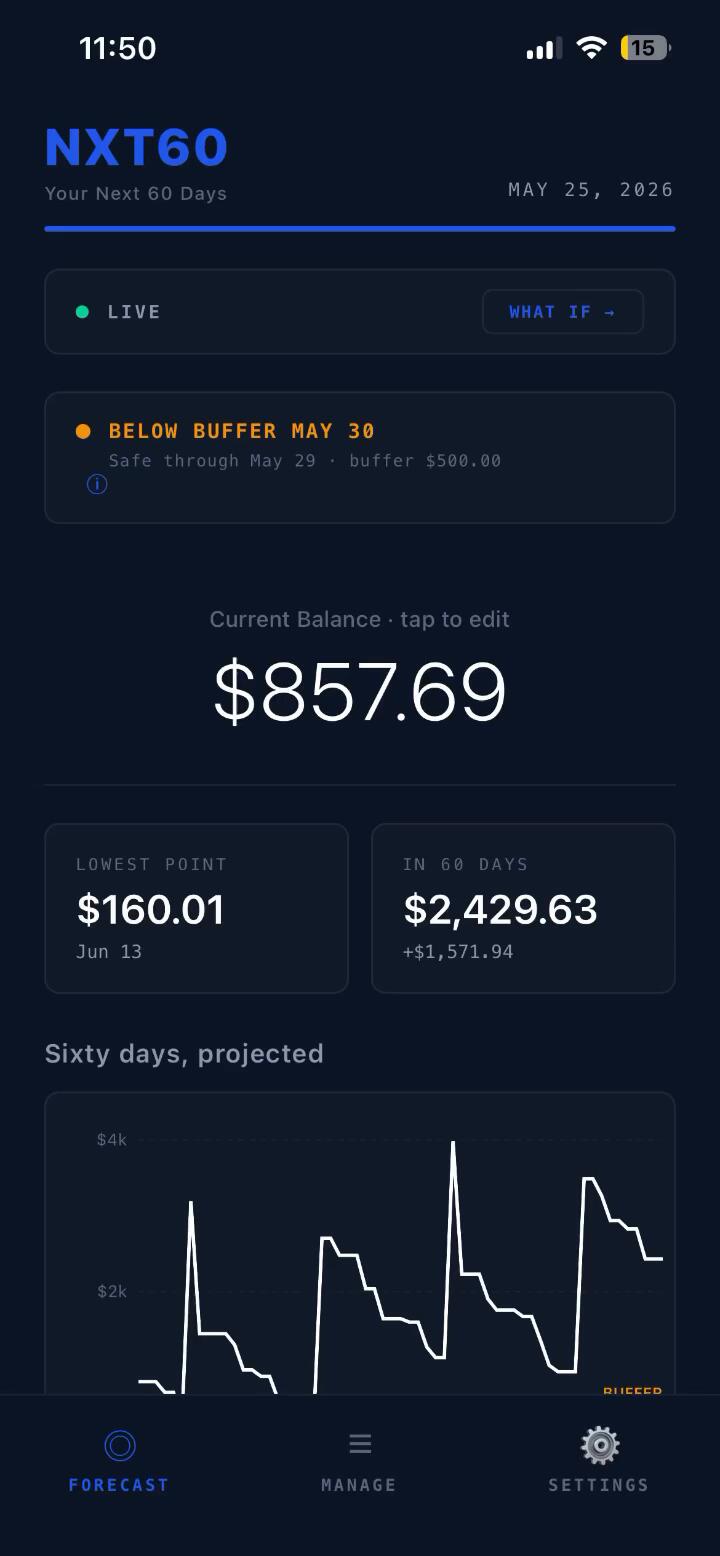
Going forward, the heavy lifting is done. Just open the app, type in your current bank balance to refresh your forecast, and toggle any upcoming items as paid or received.
NXT60 Free
See your next 60 days — free, forever
$0
Your full 60-day forecast: every paycheck, bill, and dip on one clear timeline
Add unlimited income, bills & spending: build your whole picture
Overdraft & low-balance warnings: see trouble coming before it hits
Check off bills & income as they clear to keep your forecast accurate
No ads, no data-selling: ever
NXT60 Premium
Never get blindsided by your bank account again
$3.99/month
or
$24.99/year (save 48%)
Everything in Free, plus:
Unlimited balance updates
Overdraft alerts: get warned before your balance runs low, even when the app is closed. Your safety net that never sleeps.
Debt payoff tools: real amortization, payoff dates, and see exactly how every extra payment shortens your debt
What-If mode: test a big purchase or a missed paycheck without touching your real plan
Smart reconciliation: automatically catches early or late payments and keeps your forecast dead-on
Start your 7-day free trial, cancel anytime
NXT60 User Guide
What is NXT60?NXT60 projects your daily bank balance for the next 60 days. You enter your current balance, your income, your bills, your spending, and any debt — and the app shows you exactly what your bank account will look like every day for the next two months.It answers one question: "Will I be okay?"
Getting Started
First Launch - OnboardingWhen you first open NXT60, you'll walk through four steps:Step 1: Current Balance
Open your bank app and enter the exact number you see. This is your starting point. Everything else builds on this number.Step 2: Income
Add your primary income source. Enter the name (e.g., "Day Job"), the amount you receive, how often you're paid, and your next payday.Frequency options:
-Weekly — every 7 days from the date you set
-Biweekly — every 14 days from the date you set
-Semi-monthly — the 15th and the last day of every month
-Monthly — same date every monthThe app defaults your next payday based on the frequency you choose. You can change it with the date picker.Step 3: Bills
Tap the bills you pay from the template list. Each one you select expands to show an amount field and a date picker. Enter what you actually pay and when it's due.Items under "Essentials" (Groceries, Dining Out, etc.) and "Transportation" (Gasoline, Parking, etc.) are automatically categorized as spending. Everything else goes to bills.The note "Skip if tracking in Debt module" appears on Mortgage and Car Payment. If you plan to use the debt module for these (which gives you amortization math), don't add them here — you'd be counting the payment twice.Step 4: Your Forecast
After entering your data, NXT60 shows your first 60-day forecast. The chart shows your projected balance, and a status message tells you if you're on track, approaching your buffer, or headed for a negative balance.Tap "Start Using NXT60" to enter the main app.
The Forecast Screen
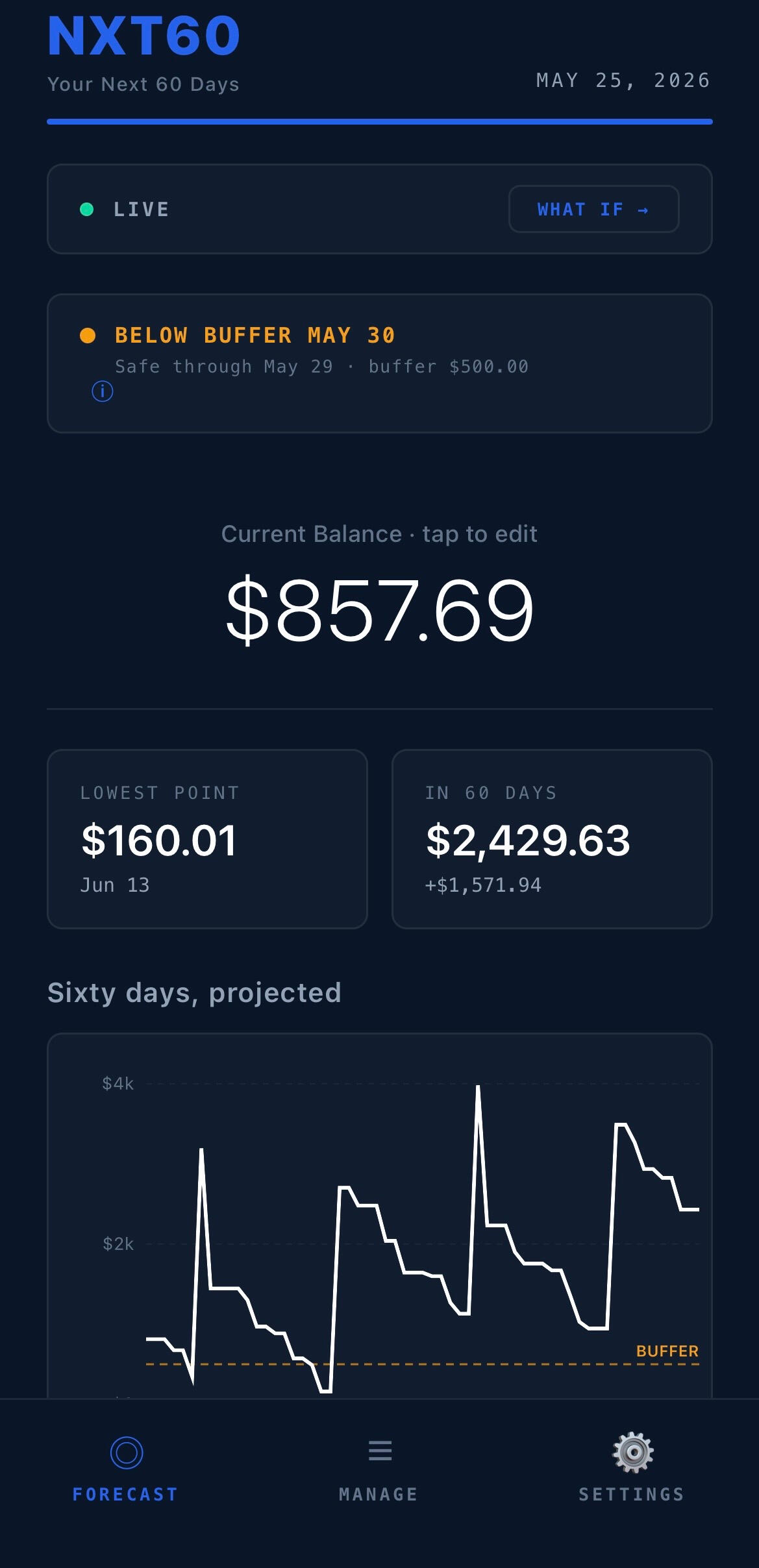
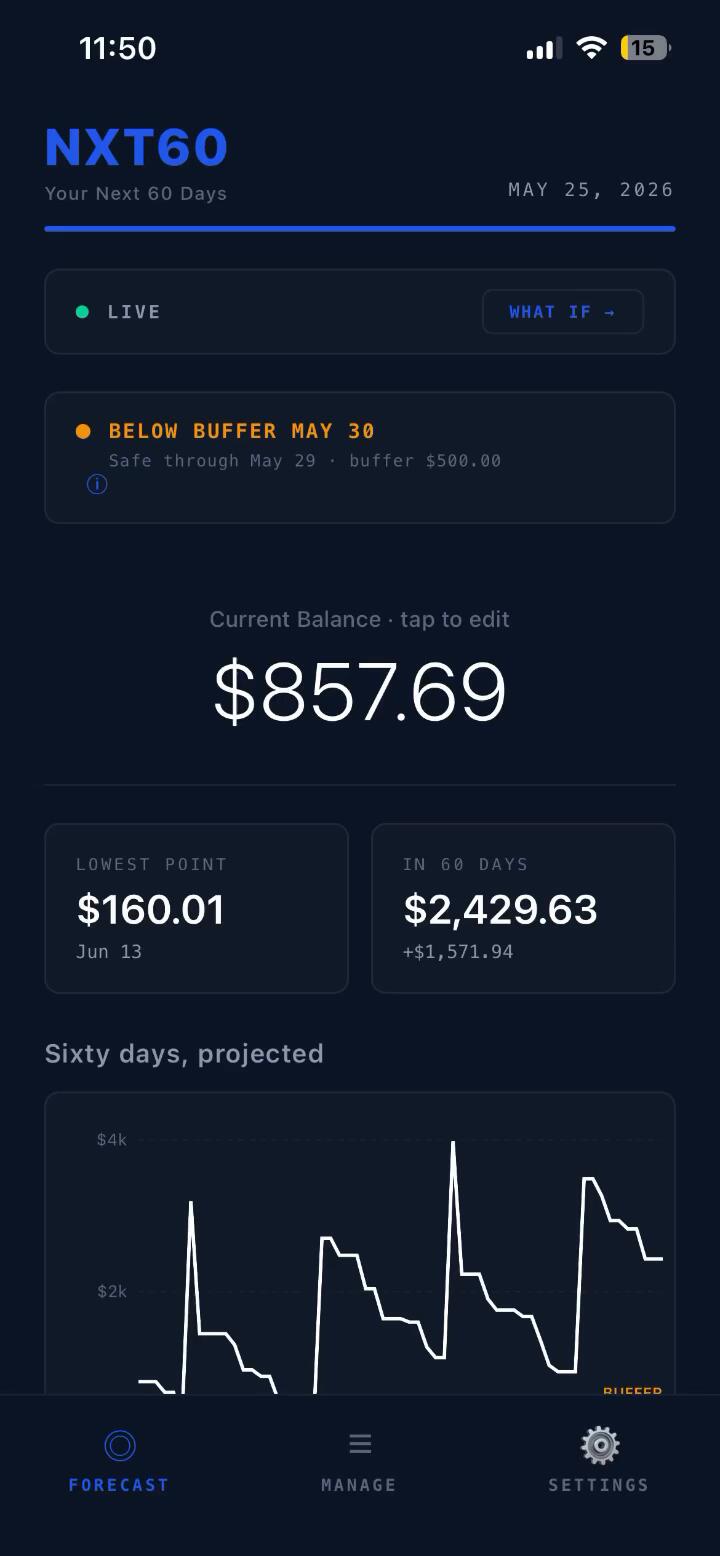
This is your home screen. Everything centers on the 60-day projection.Balance HeroThe large number at the top is your current balance. Tap it to update. You should update this whenever you check your bank — ideally every few days. The more current your balance, the more accurate your forecast.Status CardBelow the balance, a colored status message tells you:
- Green - "On track for 60 days": Your balance stays above your safety buffer for the entire forecast.
- Yellow - "Below buffer [date]": Your balance is projected to drop below your safety buffer on a specific date. This is a warning, not a crisis - you still have money, just less than your cushion.
- Red - "Goes negative [date]": Your balance is projected to go below zero. This means potential overdrafts. The date shown is the first day you'd be negative.Stats CardsTwo cards show:
- Lowest Point: The absolute lowest your balance will reach, and on what date.
- In 60 Days: What your balance will be 60 days from now, and the net change from today.The ChartThe interactive chart shows your balance trajectory for 60 days.- White line: Balance above zero
- Red line: Balance below zero
- Gold dashed line: Your safety buffer
- "BUFFER" label: Marks the buffer line
- Y-axis: Dollar amounts (scaled dynamically to your data)
- X-axis: TODAY, +30, +60Touch interaction: Drag your finger across the chart to see the exact balance and date at any point. A tooltip appears showing the amount and date.Daily Activity ListBelow the chart, every day for the next 60 days is listed with:
- Date: Bold for days with events, light for quiet days
- In: Green amount showing money coming in
- Out: Amount showing money going out
- Balance: Running balance after that day's eventsExpand a day: Tap any day with events (shown with a ">" arrow) to see individual transactions. Each event shows:
- Name of the item
- Amount (tappable — see "Inline Editing" below)
- A "rcvd" or "paid" button (see "Marking Events" below)All Days / Activity Only toggle: Tap this to switch between showing every day (including quiet days) or only days with events.Inline EditingWhen you expand a day, you can tap any amount to change it. This overrides just that single occurrence — the underlying bill/income definition doesn't change.Example: Your electric bill is set to $150/month, but this month it's $187. Expand the day, tap $150, type 187, tap away. Only that month changes. Next month still shows $150.A blue ↩ icon appears next to overridden amounts. Tap it to reset to the original value.How it works behind the scenes: Overrides are stored in a separate list (eventAmountOverrides) keyed by the event's unique identifier (type + source + date). The forecast engine checks this list before using the default amount. For debt payments, inline edits also sync to the debt schedule's override system, so downstream amortization recalculates.Marking Events as Received/PaidEach event in the expanded day view has a small pill button:
- "rcvd" for income
- "paid" for outflowsTapping it marks that specific occurrence as acknowledged. The event gets struck through and its amount is removed from the running balance calculation.When to use this: Mark events as they actually happen in your bank account. If your paycheck arrived, mark it received. If rent was paid, mark it paid. This keeps the forecast aligned with reality.How it works behind the scenes: Acknowledged events are stored by their unique key (type:sourceId:date). The forecast engine checks this list and skips acknowledged events when calculating the running balance. The event still appears in the daily list (struck through) so you can see it happened.Adding One-Time EventsAt the bottom of the daily list, tap "+ Add One-time Event" to add a single inflow (tax refund, bonus) or outflow (vacation expense, large purchase) on a specific date.
The Manage Screen
The Payment ScheduleOnce you enter the required fields, tap to see the full amortization schedule. Each row shows:
- Period number: 0 is origination, 1 is the first payment, etc.
- Month: The month this payment falls in
- Charge: Any additional charges added to the balance that month (like new credit card purchases)
- Payment: The payment amount. Tap to override for a specific period.
- Interest: How much of the payment goes to interest (for interest-bearing loans)
- Principal: How much of the payment goes to reducing the balance
- Balance: The remaining balance after this paymentPast periods are dimmed. Future periods are bright.How interest is calculated: Interest = round(balance × monthly rate, 2). The monthly rate is annual rate ÷ 12. Each step rounds independently to match Excel/lender calculations.How the final payment works: For fixed-payment loans, the last scheduled period's payment is adjusted to exactly zero out the balance (balance + interest for that period). This prevents a tiny residual from rounding differences.Charges (Adding to Balance)In the schedule, you can enter charges in the "Charge" column for any month. This is for credit card purchases or any amount added to the loan balance. Charges increase the balance before that month's payment is applied.Payment OverridesTap the payment amount for any future period to override it. For example, if you know you'll pay less one month, enter the actual amount. The schedule recalculates all downstream periods.Overridden payments show in blue with bold text.Extra PaymentsBelow the schedule, you can add extra payments — one-time amounts applied on a specific date. Extra payments go 100% toward principal (no interest component).How it works behind the scenes: Extra payments are bucketed into the period they fall in. They're applied AFTER the regular payment for that period. The balance drops by the extra amount, which means less interest accrues next month. For recalc loans, remaining payments automatically shrink. For fixed loans, the loan pays off earlier.In the forecast: Extra payments appear as separate cash outflows on their specific dates, labeled with "(extra)" so you can distinguish them from regular payments.ObligationsObligations don't have a balance or interest. You define periods:
- Start Date: When this obligation begins
- End Date: When it ends
- Monthly Amount: How much you pay per monthYou can add multiple periods (e.g., if the amount changes after a year).
What If Mode
What If mode lets you experiment without saving changes.How to use it: Tap "What If →" on the Forecast or Manage screen. The banner turns yellow and says "What If - changes won't save."While in What If mode, you can:
- Add, edit, or delete any items
- Change amounts, dates, frequencies
- Add or remove debt
- See how the forecast changes in real timeWhen you exit: Tap "Exit" on the banner. Everything reverts to your real data. Nothing you did in What If mode is saved.Use cases:
- "What if I make an extra $500 payment this month?"
- "What if I cancel this subscription?"
- "What if I get a raise?"
- "What if I take on a car payment?"
Balance Reconciliation
When you update your balance and it doesn't match what the forecast expected, NXT60 may show a reconciliation alert. This only happens when the difference matches a specific known event.How It Works1. You update your balance to $3,085
2. The forecast expected $2,452 (because a $633 credit card payment was scheduled)
3. The difference is +$633 — which matches the credit card payment exactly
4. NXT60 shows: "Your balance is $633 higher than expected. This payment may not have posted yet."Three Scenarios1. Balance higher than expected + past outflows: A payment was scheduled but didn't post (common with weekend banking delays). You can delay the event to a future date.
2. Balance higher than expected + upcoming income: Your direct deposit may have arrived early. NXT60 checks the next 3 days for matching inflows. Tap "Yes, Received Early" to acknowledge it.
3. Balance lower than expected + past inflows: Expected income hasn't arrived yet. You can delay it to when you expect it.Delay ControlsFor each matched event, you can:
- Tap Tomorrow, +2 days, or +3 days for quick selection
- Enter a specific date
- Tap Delay to move the eventDelaying an event marks the original occurrence as acknowledged and creates a new one-time event at the new date.Smart MatchingThe reconciliation only triggers when the difference can be explained by a specific event. If you spent $73 on dinner and gas that the forecast didn't know about, it stays silent - that's just unplanned spending, not a delayed payment.Turning It OffIf you find reconciliation alerts unhelpful, go to Settings → Balance Reconciliation toggle → off. You can also adjust the tolerance amount (default $50) — differences below this threshold are ignored.
Settings
Dark Mode
Toggle between dark (default) and light theme. Your preference is saved and persists across sessions.Notifications
Toggle balance warnings and nudge reminders on/off.When enabled:
- Danger/buffer warnings: If your forecast shows a negative balance or drops below your buffer, you'll be notified 3 days and 1 day before the critical date. Only fires if you haven't opened the app in 24+ hours.
- Balance nudge: If you haven't opened the app in 3 days, a gentle reminder to update your balance.Current Balance
Same as tapping the balance hero on the Forecast screen.Safety Buffer
Your financial cushion. When the forecast projects your balance will drop below this amount, you see a yellow warning. A good starting point is one month of essential expenses.Balance Reconciliation
Toggle the mismatch detection system on/off.Reconciliation Tolerance
The minimum difference (in dollars) between your entered balance and the forecast before reconciliation triggers. Default is $50. Raise it if you get too many false alerts from unplanned spending.How to Use NXT60
Opens the full FAQ help center covering all features.Restore Purchase
If you purchased premium and reinstall the app or switch devices, tap this to restore your purchase. Uses your Apple ID to verify.Reset All Data
Erases everything and restarts onboarding. Cannot be undone.Terms & Disclaimer / Privacy Policy
Links to the legal documents.Version
The version number is shown at the bottom. Premium status is displayed below it (Trial: X days remaining, Trial ended, or Premium ✓).
Notifications
NXT60 uses local notifications only - no server, no push service, no data leaves your device.Danger/buffer warnings: Every time you make a change in the app (add a bill, update balance, edit anything), the forecast recalculates. If it finds a day where your balance goes negative or drops below your buffer, it schedules two notifications with iOS:
- 3 days before the critical date
- 1 day before the critical dateIf the warning date has already passed but the critical date hasn't, the notification fires after 24 hours instead.These notifications are registered with iOS natively. They fire even if the app is closed or your phone restarts.Balance nudge: Every time the app opens or state saves, a "check your balance" reminder is scheduled for 3 days later. If you open the app again before then, it cancels and reschedules for 3 more days. It only fires if you don't use the app for 3 consecutive days.Cancellation: Every change you make in the app cancels and reschedules all notifications based on the current forecast. If you fix a negative balance, the warnings cancel automatically.
Timeline Grid (Landscape)
Rotate your phone to landscape and a LIST/GRID toggle appears.List view: Same daily activity list as portrait.Grid view: A spreadsheet-style view with:
- Left column (sticky): Category headers (Income, Bills, Spending, Debt, One-time) with individual items indented underneath
- Columns: Each day for 60 days (scroll horizontally)
- Cells: Amounts - green for inflows, white for outflows, dots for no activity
- Net row: Bold, daily total of all events
- Balance row: Bold blue, running balance - red when negative
- Today column: HighlightedThis view is designed for people who think in spreadsheets and want to see everything at once.
Trial and Premium
NXT60 offers a 14-day free trial with full access. After 14 days:Free (view-only):
- View your forecast, chart, and daily list
- See all your data
- Cannot add, edit, or delete items
- Cannot edit your balance
- Cannot use What If mode
- Cannot mark events as paid/received
- Cannot use inline editingPremium ($14.99 one-time):
- Full access forever
- All features unlocked
- No subscription — pay once, own it
- Works across devices with the same Apple ID (use Restore Purchase)The upgrade modal appears when you try to do anything that requires premium access.
Tips for Accurate Forecasting
1. Update your balance every 2-3 days. The forecast drifts from reality as time passes. A quick balance update re-anchors everything.2. Mark events as they happen. When your paycheck arrives, mark it received. When rent posts, mark it paid. This prevents double-counting.3. Use inline editing for one-off changes. Electric bill higher this month? Override that one occurrence. Don't change the recurring amount.4. Set your buffer realistically. Too low and warnings are meaningless. Too high and everything is always yellow. One month of essential expenses is a good starting point.5. Use What If before big decisions. Thinking about a purchase? Test it first. The 30 seconds it takes could save you from an overdraft.6. Check the debt schedule after extra payments. When you make an extra payment, the schedule recalculates. You can see exactly how many months you've shaved off and how much interest you've saved.